

Import Traces
Bring your existing traces from Langfuse, LangSmith, Braintrust, Raindrop, Arize Phoenix, and Laminar into Neatlogs.
Already running another observability platform? Import your existing traces into Neatlogs so they live alongside your native data: searchable, filterable, and ready for detections, comments, and plain-English questions like any other trace.
Neatlogs imports from six sources today:
| Source | What you connect with |
|---|---|
| Langfuse | Public key + secret key + region (or a self-hosted URL) |
| LangSmith | API key + region |
| Braintrust | API key + region |
| Raindrop | Read API key + project slug |
| Arize Phoenix | Base URL + API key |
| Laminar | Project API key + base URL |
Every imported trace gets a source badge: the platform's icon and name (Langfuse, LangSmith, Braintrust, Raindrop, Phoenix, or Laminar) shown in the Tags column of the traces list, so imported and native data stay distinguishable at a glance.
There are two ways in: from the setup page while a new project waits for its first trace, or any time from Settings → Project → Trace imports.
From the setup page. Until a project receives its first trace, setup opens Set up Neatlogs. Its Bring in a run step has an import tab next to the agent prompt, CLI, and manual setup routes. Pick the platform you're migrating from (Langfuse, Braintrust, LangSmith, Raindrop, Phoenix, or Laminar) and connect it. Imported traces count as your first trace, so a migration alone completes this step without touching the SDK.
From Settings → Project → Trace imports. The full entry point for every source, the import window, and recurring sync. Imports land in the project selected in the workspace switcher.
Who can import
| Action | Required role |
|---|---|
| Connect, re-verify, or disconnect a source (connections are shared across the organization) | Organization owner or admin |
| Start, pause, resume, or cancel an import into a project | Project Admin on that project (organization owners and admins are Project Admins everywhere) |
| See import status for a project | Anyone with access to the project |
The controls stay visible to everyone, but the request fails for other roles. If an action is rejected with an admin-access error, ask an organization owner or admin, or a project admin, to run it.
How importing works
There are three pieces, and the UI walks you through them in order:
- Connection: your credentials for a source platform, saved once per organization and encrypted. Neatlogs verifies them before saving by listing the projects your key can see.
- Source project and destination: pick which source project to import. The traces land in the Neatlogs project you have selected, so switch projects first if you want them elsewhere.
- Job: the actual import. It runs in the background, fetches traces over the window you choose, and writes them into the destination project.
Every import is one of two modes:
| Mode | What it does |
|---|---|
| One-time import | Imports everything in a fixed date range, then finishes. |
| Recurring sync | Imports the range, then keeps pulling new traces on the frequency you set: every 5 minutes, 15 minutes, hour, 6 hours, or day. |
Turn on Keep syncing automatically to start a recurring sync after the initial import, so you can migrate history and keep both platforms in sync during a cutover from a single setup.
Neatlogs imports run from our cloud, so private-network endpoints aren't reachable. LangSmith, Braintrust, and Raindrop use their hosted endpoints. Langfuse offers its cloud regions or a Self-hosted URL. Phoenix uses the base URL of your Phoenix space. Laminar defaults to https://api.lmnr.ai, or you can enter the public base URL of a self-hosted instance. Every custom URL must be reachable over the public internet: localhost, private, reserved, and other non-public addresses are rejected, including when a redirect points to one.
Start an import
You can begin an import in two places:
- setup → Bring in a run → import: before a new project receives its first trace.
- Settings → Project → Trace imports: the main entry point for trace imports, with every source and sync management.
Either way the flow is the same: connect a source, choose the source project and window, and start the job.
To import Langfuse prompts rather than traces, open Experiments → Prompts and select Import. That imports prompts and their versions; it does not import traces.
Connect a source
Each source needs a different credential. Pick your platform below for exactly what to grab and where it lives.
| Field | What to enter |
|---|---|
| Region | Europe (cloud.langfuse.com), United States, Japan, HIPAA (US), or Self-hosted. |
| Self-hosted URL | Only for Self-hosted: the public base URL of your Langfuse instance. Private or VPN-only hosts are not supported. |
| Public Key | From Langfuse Settings → API Keys. Starts with pk-lf-…. |
| Secret Key | Same screen as the public key. Starts with sk-lf-…. |
Both organization-scoped and project-scoped keys work. A project-scoped key surfaces a single project; an org-scoped key surfaces every project it can see.
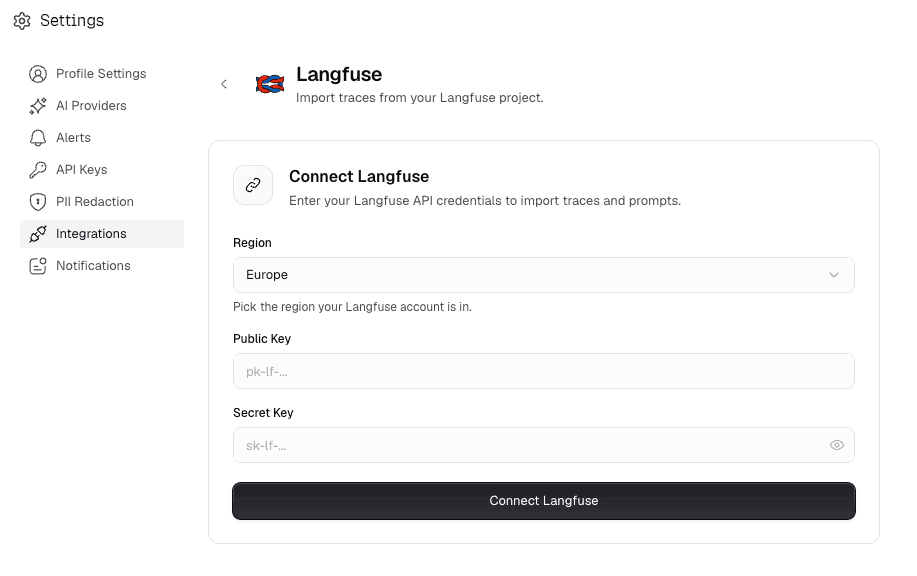
The Langfuse connection form: choose the region, then paste the public and secret keys.
| Field | What to enter |
|---|---|
| Region | United States (api.smith.langchain.com), Europe, Asia-Pacific, or AWS US. |
| API Key | From LangSmith Settings → API Keys. Starts with lsv2_…. |
A LangSmith key only works against the one region it was issued for. If you pick the wrong region, the connection fails with an authentication error rather than a redirect. Re-check the region your account is on and try again.
In LangSmith, "projects" are sessions; Neatlogs lists each one so you can pick which to import.
| Field | What to enter |
|---|---|
| Region | United States (api.braintrust.dev) or Europe (api-eu.braintrust.dev). |
| API Key | From Braintrust Settings → API Keys. |
Like LangSmith, a Braintrust key is region-pinned. Neatlogs checks the region while connecting, so a wrong region fails before the connection is saved. Switch to your account's region and reconnect.
| Field | What to enter |
|---|---|
| Project slug | default for your Raindrop Production project, or the slug of another Raindrop project. This is not an event name. |
| Read API Key | Generate a Read API key from your Raindrop project settings → API Keys. Raindrop's query API has a single global endpoint, so there is no region to pick. |
Raindrop's query API doesn't list projects, so Neatlogs shows exactly one importable source project: Production for default, or the slug you entered. Use the Read API key, not the Write key used for ingest; the Write key won't authenticate here. Connect Raindrop from Settings → Project → Trace imports, which asks for the project slug.
| Field | What to enter |
|---|---|
| Project API Key | Generate a project API key from Laminar → project settings. |
| Base URL | Leave https://api.lmnr.ai for Laminar Cloud. Change it only for a publicly reachable self-hosted Laminar instance. |
A Laminar project API key already scopes access to one project. Neatlogs verifies it with a read-only request and shows one importable source project named Laminar. For self-hosted Laminar, use the public URL that serves its API.
| Field | What to enter |
|---|---|
| Base URL | Your Phoenix Cloud space URL: open Phoenix and copy the host, e.g. https://app.phoenix.arize.com/s/your-space. Each space has its own URL, so there's no region to pick. |
| API Key | Generate one from Phoenix → Settings → API Keys (a long eyJ… token). Sent as a Bearer token. |
Phoenix uses a base URL instead of a region dropdown because every Phoenix Cloud space lives on its own URL. Paste the full space URL (a trailing slash is fine; Neatlogs trims it). Neatlogs lists the projects in that space so you can pick which to import.
When you save a connection, Neatlogs probes the source right away and shows the projects your key can see. Raindrop and Laminar each show a single import target. If credentials, region, or base URL are wrong, you'll see the error before anything is saved, so nothing unusable gets stored.
Map projects and choose a window
Once a connection is verified, choose what to import. The traces land in the Neatlogs project currently selected in the workspace switcher.
- Choose the source project. When the key sees more than one project, pick it from the list; otherwise Neatlogs shows the single Source project.
- Pick a time window. Choose Last 1 day, Last 1 week, Last 1 month, or Custom with a From date and an optional To date. A one-time import covers at most 90 days; for longer history, turn on recurring sync.
- Choose the mode. Leave Keep syncing automatically on and pick a Sync frequency for a recurring sync, or turn it off for a one-time import.
- Start the job. Select Start syncing (recurring) or Import traces (one-time).
To import several source projects, start one import per project, selecting the destination Neatlogs project each time.
Track and control a running import
Imports run in the background; you can close the page and the import keeps running. A one-time import shows a progress bar while it runs. The bar is indeterminate when the source does not report a total.
Each job shows a status in its header:
| Status | One-time import | Recurring sync |
|---|---|---|
| Queued | Queued | Syncing every … (with the next run time) |
| Running | Importing traces | Syncing now |
| Paused by you | Import paused | Sync paused |
| Finished | Import complete | Sync complete (until the next run) |
| Stopped on an error | Import failed | Sync failed |
| Stopped by you | Import cancelled | Sync stopped |
While a job runs, its counts show Traces found, Ready in NeatLogs, Still processing, and Failed. When a run finishes, the summary shows:
| Count | What it means |
|---|---|
| New traces imported | New traces written into the destination project. |
| Updated | Traces re-imported because they changed at the source. |
| Already up to date | Traces unchanged since the last import, so left as-is. |
| Failed | Traces that errored during this run. |
The most recent error appears under Recent issue (or Retry #N while Neatlogs retries).
You can Pause, Resume, or Cancel a job (Stop syncing for a recurring sync):
- Pause / Resume: stops fetching without losing progress. A resumed job picks up from where it left off, not from the start.
- Retry import: restarts a failed job once the cause is fixed.
- Cancel / Stop syncing: stops the job for good. Already-imported traces are kept; nothing is rolled back. To sync again later, create a new sync.
Imports are safe to re-run and resume. Already-imported traces are skipped automatically, so an interrupted import, an overlapping window, or a recurring sync that re-reads a boundary trace won't create duplicates in the destination project.
After the import
Imported traces appear in the destination project's Traces page like any native trace: full span tree, timeline, inputs and outputs, token counts, and costs. The original source platform's structure is mapped onto Neatlogs spans, so a CrewAI run imported from LangSmith looks like a CrewAI run captured natively.
Because every imported trace becomes a first-class Neatlogs trace, everything works on it:
| Where | What you get |
|---|---|
| Traces | Full list view, with a source badge (icon + name) in the Tags column of each imported row. There is no separate source filter, but the Tags filter also matches the source name, so contains langsmith finds LangSmith imports. |
| Investigate | Searches and investigates imported and native traces together. |
| Detections | Configured detections run on imported traces automatically. |
| Comments | Comment on and collaborate over imported traces just like native ones. |
The source badge is what keeps imported and native data distinguishable at a glance, which is handy for verifying a migration or keeping a clean separation while you evaluate Neatlogs against your current tool.
Troubleshooting
The connection couldn't authenticate against the source.
- Double-check the key is correct and hasn't been rotated or revoked at the source.
- For LangSmith and Braintrust, confirm you picked the right region. A key only works against the one region it was issued for.
- For Raindrop, make sure you're using the Read API key, not the Write key used for ingest, and that the project slug is correct.
- For Laminar, use a project API key, not an organization-level credential, and leave the base URL as
https://api.lmnr.aiunless you run a public self-hosted instance. - For Phoenix, confirm the base URL points at the right Cloud space (the same host you see in the browser, e.g.
https://app.phoenix.arize.com/s/your-space) and that the API key belongs to that space. - For self-hosted Langfuse, confirm the URL is publicly reachable from the internet.
- Stored credentials can't be edited. After a key is rotated or revoked, Disconnect the source and connect it again with the new key. Re-verify re-checks the key that is already saved.
If saving fails with a permission error, ask an organization owner or admin to connect the source.
The connection saved but no projects appear to import.
- The key is valid but scoped to an org/workspace with no visible projects. Check it can see the project you expect at the source.
- For Langfuse, a project-scoped key only surfaces its one project; use an org-scoped key to see them all.
- For Raindrop, Neatlogs always shows the one project named by the slug (Production for
default). Reconnect with the slug of the project you want. - For Laminar, a valid project API key always surfaces one source project named Laminar because the key itself provides the project scope. Reconnect with the key for the project you want to import.
- For Phoenix, confirm the base URL points at the space that actually holds your projects. A valid key on the wrong space URL connects but shows that space's (possibly empty) project list.
The import finished but you don't see the traces.
- Confirm the time window actually covers when those traces were created at the source.
- Verify you chose the correct source project, not just the account.
- Confirm you were in the intended Neatlogs project when you started the import. Imports land in the project selected at that time.
- Check the job status in Settings → Project → Trace imports. It may still be importing, or show Import failed with an error under Recent issue.
- Try a smaller window first to isolate the issue.
The job stopped as failed or paused.
- Open the job and read the error under Recent issue. It names the failure.
- Confirm the API key is still valid (not rotated or expired) and the region or base URL is right. A self-hosted URL must be publicly reachable.
- Check the source platform's status in case it's down.
- Select Resume for a paused job (it continues from where it left off) or Retry import for a failed one once the cause is fixed.
You think you're seeing duplicate traces.
Neatlogs de-duplicates on the way in and skips traces that are unchanged since the last run, so an interrupted import, an overlapping window, or a recurring sync re-reading a boundary trace won't create duplicates. Apparent duplicates are usually:
- Different source projects that share trace IDs, or
- Genuinely distinct traces with similar content but different timestamps.
If you're confident it's a real duplication bug, contact support with the trace IDs that look duplicated.
For a systematic diagnosis, see Troubleshoot imports.