

Import Traces
Bring your existing traces from Langfuse, LangSmith, Braintrust, Raindrop, Arize Phoenix, and Laminar into Neatlogs.
Already running another observability platform? Import your existing traces into Neatlogs so they live alongside your native data — searchable, filterable, and ready for detections, comments, and the AI assistant like any other trace.
Neatlogs imports from six sources today:
| Source | What you connect with |
|---|---|
| Langfuse | Public key + secret key + region |
| LangSmith | API key + region |
| Braintrust | API key + region |
| Raindrop | Read API key |
| Arize Phoenix | Base URL + API key |
| Laminar | Project API key + base URL |
Every imported trace gets a source badge — the platform's icon and name (Langfuse, LangSmith, Braintrust, Raindrop, Phoenix, or Laminar) shown right in the traces list — so imported and native data are always distinguishable at a glance and filterable by source.
There are two ways in: directly from quick setup when you create a new project, or any time from Settings → Integrations.
From quick setup. A new project opens on a setup screen with an Import from an existing tool panel right next to the SDK install. Pick the platform you're migrating from — Langfuse, Braintrust, LangSmith, Raindrop, or Laminar — and connect it. Imported traces count as your first trace, so a migration alone gets you started without touching the SDK. ("See all" jumps to the full list in Settings → Integrations.)
From Settings → Integrations. The full entry point for every source, project mapping, and recurring sync.
How importing works
There are three pieces, and the UI walks you through them in order:
- Connection — your credentials for a source platform, saved once and encrypted. Neatlogs verifies them immediately by listing the projects your key can see.
- Project mapping — pick which source project's traces go into which Neatlogs project. You can target an existing project or have Neatlogs create one for you.
- Job — the actual import. It runs in the background, fetches traces over the window you choose, and writes them into the target project.
Every import is one of two modes:
| Mode | What it does |
|---|---|
| One-time backfill | Imports everything in a fixed date range, then finishes. |
| Recurring sync | Backfills the range, then keeps pulling new traces on a cadence you set (for example every 15m, 1h, 1d, or 1w). |
A backfill can also spawn a recurring sync once it completes, so you can migrate history and keep both platforms in sync during a cutover from a single setup.
Neatlogs imports run from our cloud, so private-network endpoints aren't reachable. Most sources use a hosted region rather than a custom URL. Phoenix uses its publicly reachable Cloud space URL. Laminar defaults to https://api.lmnr.ai, or you can enter the public base URL of a self-hosted Laminar instance. Localhost, private, reserved, and other non-public destinations are rejected.
Start an import
You can begin an import in three places:
- Quick setup — when you create a new project, import straight from the setup screen (Langfuse, Braintrust, LangSmith, Raindrop, or Laminar).
- Settings → Integrations — the main entry point for trace imports, with every source and sync management.
- Experiments → Prompts → Import — for importing prompt data specifically.
Either way the flow is the same: connect a source, map projects, choose a window, and start the job.
Connect a source
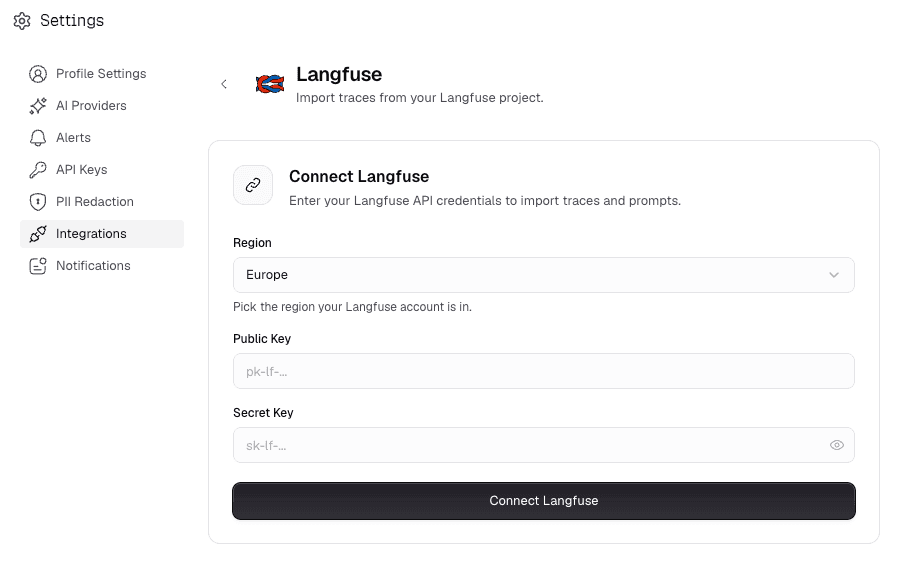
Each source needs a different credential. Pick your platform below for exactly what to grab and where it lives.
| Field | What to enter |
|---|---|
| Public key | From Langfuse Settings → API Keys — starts with pk-lf-…. |
| Secret key | Same screen as the public key — starts with sk-lf-…. |
| Region | cloud.langfuse.com (EU), us.cloud.langfuse.com, jp.cloud.langfuse.com, or hipaa.cloud.langfuse.com. |
Both organization-scoped and project-scoped keys work. A project-scoped key surfaces a single project; an org-scoped key surfaces every project it can see.
| Field | What to enter |
|---|---|
| API key | From LangSmith Settings → API Keys — starts with lsv2_…. |
| Region | api.smith.langchain.com (US), eu.api.smith.langchain.com, apac.api.smith.langchain.com, or aws.api.smith.langchain.com. |
A LangSmith key only works against the one region it was issued for. If you pick the wrong region, the connection fails with an authentication error rather than a redirect — re-check the region your account is on and try again.
In LangSmith, "projects" are sessions; Neatlogs lists each one so you can pick which to import.
| Field | What to enter |
|---|---|
| API key | From Braintrust Settings → API Keys. |
| Region | api.braintrust.dev (US) or api-eu.braintrust.dev (EU). |
Like LangSmith, a Braintrust key is region-pinned. Picking the wrong region returns a clear "wrong region" error telling you which region your account is on — switch to it and reconnect.
| Field | What to enter |
|---|---|
| API key | The Read / Query API key from your Raindrop workspace's API Keys page — a long hex string. No region or secret to enter; Raindrop's query API has a single global endpoint. |
Raindrop has no native "project" concept, so Neatlogs lists your distinct event names as importable projects. Pick the event name whose traces you want to bring over. Make sure you're using the Read / Query API key, not the SDK write key — they're different keys and the write key won't authenticate here.
| Field | What to enter |
|---|---|
| Project API key | Generate a project API key from Laminar → Project Settings. |
| Base URL | Leave https://api.lmnr.ai for Laminar Cloud. Change it only for a publicly reachable self-hosted Laminar instance. |
A Laminar project API key already scopes access to one project. Neatlogs verifies it with a read-only request and shows one importable source project named Laminar. For self-hosted Laminar, use the public URL that serves its API; private addresses and redirects are rejected.
| Field | What to enter |
|---|---|
| Base URL | Your Phoenix Cloud space URL — open Phoenix and copy the host, e.g. https://app.phoenix.arize.com/s/your-space. Each space has its own URL, so there's no region to pick. |
| API key | From Phoenix Settings → API Keys — a system or personal key (a long eyJ… token). Sent as a Bearer token. |
Phoenix is the one source you connect with a base URL instead of a region dropdown, because every Phoenix Cloud space lives on its own URL. Paste the full space URL (a trailing slash is fine — Neatlogs trims it). Neatlogs lists the projects in that space so you can pick which to import.
When you save a connection, Neatlogs probes the source right away and shows the projects your key can see. Laminar shows its single project-scoped import target. If credentials, region, or base URL are wrong, you'll see the error before anything is saved — nothing unusable gets stored.
Map projects and choose a window
Once a connection is verified, pick which source project to import and where it lands:
- Choose a source project from the verified list.
- Choose a target Neatlogs project — either an existing one, or let Neatlogs create a new project named after the source project. Newly created projects come pre-seeded with default detections and your LLM integrations, so detections run on imported traces immediately.
- Pick a date range — a preset (last
1d,1w,1mo) or a custom window with explicit start/end dates. - Choose a mode — one-time backfill or recurring sync (with a cadence). A backfill can optionally turn into a recurring sync once it finishes.
You can map several source projects at once — select them all, set the window and mode, and Neatlogs creates one import job per project in a single step.
Track and control a running import
Imports run in the background; you don't have to keep the tab open. Each job shows live progress, and where the source reports a total, you'll see an "X of Y traces" bar. (LangSmith, Braintrust, and Raindrop don't always return a total, so those show an indeterminate progress indicator while still importing everything in the window — Langfuse, Phoenix, and Laminar report an exact count.)
Each job surfaces a status:
| Status | Meaning |
|---|---|
pending | Queued, not yet started. |
running | Actively fetching and writing traces. |
paused | Stopped by you, mid-import — progress is kept. |
succeeded | Finished importing everything in the window. |
failed | Stopped on an error (see the last-error message). |
cancelled | Stopped by you for good. |
...plus per-run stats:
| Stat | What it counts |
|---|---|
| Imported | New traces written into the target project. |
| Replaced | Traces re-imported because they changed at the source. |
| Skipped | Traces unchanged since the last sync, so left as-is. |
| Failed | Traces that errored during this run. |
| Last error | The most recent failure message, if a run errored. |
You can pause, resume, or cancel any job:
- Pause / resume — stops fetching without losing progress. A resumed job picks up from where it left off, not from the start.
- Cancel — stops the job for good.
Imports are safe to re-run and resume. Neatlogs de-duplicates on the way in, so an interrupted backfill, an overlapping window, or a recurring sync that re-reads a boundary trace won't create duplicates in the target project.
After the import
Imported traces appear in the target project's Traces page like any native trace — full span tree, timeline, inputs and outputs, token counts, and costs. The original source platform's structure is mapped onto Neatlogs spans, so a CrewAI run imported from LangSmith looks like a CrewAI run captured natively.
Because every imported trace becomes a first-class Neatlogs trace, everything works on it:
| Where | What you get |
|---|---|
| Traces list | Full list view, with a source badge (icon + name) on each imported row. Filter to a single source, all imports, or exclude imports entirely. |
| Investigate | Neat AI investigates across imported and native traces together. |
| Detections | Configured detections run on imported traces automatically. |
| Comments | Comment on and collaborate over imported traces just like native ones. |
The source badge is what keeps imported and native data distinguishable at a glance — handy for verifying a migration, or keeping a clean separation while you evaluate Neatlogs against your current tool.
Troubleshooting
The connection couldn't authenticate against the source.
- Double-check the key is correct and hasn't been rotated or revoked at the source.
- For LangSmith and Braintrust, confirm you picked the right region — a key only works against the one region it was issued for, and the wrong region returns an auth/region error rather than redirecting.
- For Raindrop, make sure you're using the Read / Query API key, not the SDK write key — the write key won't authenticate here.
- For Laminar, use a project API key, not an organization-level credential, and leave the base URL as
https://api.lmnr.aiunless you run a public self-hosted instance. - For Phoenix, confirm the base URL points at the right Cloud space (the same host you see in the browser, e.g.
https://app.phoenix.arize.com/s/your-space) and that the API key belongs to that space. - Re-enter the credentials to re-save the connection (a rotated key or changed encryption key invalidates a previously-working connection).
The connection saved but no projects appear to import.
- The key is valid but scoped to an org/workspace with no visible projects — check it can see the project you expect at the source.
- For Raindrop, this usually means no events have been recorded yet — Neatlogs lists distinct event names as projects, so there's nothing to list until events exist.
- For Langfuse, a project-scoped key only surfaces its one project; use an org-scoped key to see them all.
- For Laminar, a valid project API key always surfaces one source project named Laminar because the key itself provides the project scope. Reconnect with the key for the project you want to import.
- For Phoenix, confirm the base URL points at the space that actually holds your projects — a valid key on the wrong space URL connects but shows that space's (possibly empty) project list.
The import finished but you don't see the traces.
- Confirm the date range actually covers when those traces were created at the source.
- Verify you mapped the correct source project, not just the account.
- Check the job status in Integrations — it may still be
running, or havefailedwith a last-error message. - Try a smaller window first to isolate the issue.
The job stopped with a failed or paused status.
- Open the job and read the last-error message — it names the failure.
- Confirm the API key is still valid (not rotated/expired) and the region or base URL is right. For Laminar, a self-hosted URL must be publicly reachable and must not redirect.
- Check the source platform's status in case it's down.
- Resume a paused job (it continues from where it left off) or re-run a failed one once the cause is fixed.
You think you're seeing duplicate traces.
Neatlogs de-duplicates on the way in by content hash, so an interrupted backfill, an overlapping window, or a recurring sync re-reading a boundary trace won't create duplicates. Apparent duplicates are usually:
- Different source projects that share trace IDs, or
- Genuinely distinct traces with similar content but different timestamps.
If you're confident it's a real duplication bug, contact support with the trace IDs that look duplicated.